> For the complete documentation index, see [llms.txt](https://doc.commandersact.com/llms.txt). Markdown versions of documentation pages are available by appending `.md` to page URLs; this page is available as [Markdown](https://doc.commandersact.com/developers/commanders-tag-gateway/manage-your-gateway.md).

# Manage your Gateway

### Configure your Gateway from the Administration interface

You create, configure and monitor your first-party Gateways in **Administration > Gateway**, with no code. The only technical step is connecting your CDN (see [Route traffic](https://doc.commandersact.com/developers/commanders-tag-gateway#step-2-route-traffic)).

### Get started <a href="#get-started" id="get-started"></a>

If the site has no Gateway yet, you see an introduction screen. Choose one of two options:

* **Configure my first Gateway** — launches the 5-step setup wizard below.
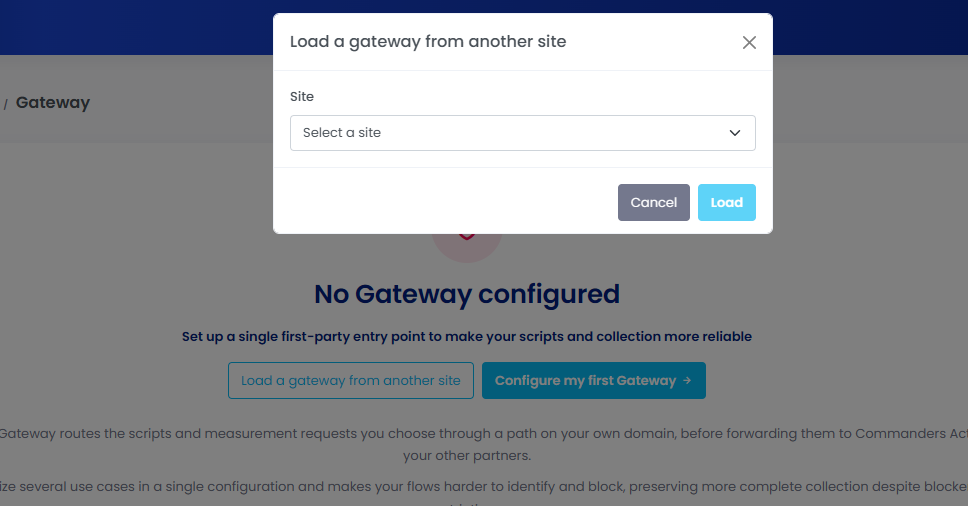
* **Load a gateway from another site** — reuses an existing Gateway from your account as a starting point.

<figure><img src="https://1259070148-files.gitbook.io/~/files/v0/b/gitbook-x-prod.appspot.com/o/spaces%2F-Mk6XpTQ2LaRLcr2tA-d%2Fuploads%2FN5CszHNx0SjjLdUK9DBY%2F01-empty-state.png?alt=media&amp;token=2a47e4e8-55e0-4426-9527-fe2d71f47567" alt=""><figcaption><p>No Gateway configured</p></figcaption></figure>

<figure><img src="https://1259070148-files.gitbook.io/~/files/v0/b/gitbook-x-prod.appspot.com/o/spaces%2F-Mk6XpTQ2LaRLcr2tA-d%2Fuploads%2Fer8DHA9iXp3ZwpqUdZ6t%2F02-load-gateway-modal.png?alt=media&amp;token=41d94c57-28ff-49d9-bacb-d449c48b2e90" alt=""><figcaption><p>Load a gateway from another site</p></figcaption></figure>

> 💡 **Tip:** Click **Save and exit** at any time. Your progress is saved, and the Gateway stays *inactive* until setup is complete.

### Set up a Gateway in 5 steps <a href="#set-up-a-gateway-in-5-steps" id="set-up-a-gateway-in-5-steps"></a>

```mermaid
flowchart LR
  A[1. Scope] --> B[2. Domain & path] --> C[3. CDN connection] --> D[4. Verification] --> E[5. Activation]
```

#### Step 1 · Scope

<figure><img src="https://1259070148-files.gitbook.io/~/files/v0/b/gitbook-x-prod.appspot.com/o/spaces%2F-Mk6XpTQ2LaRLcr2tA-d%2Fuploads%2FVI10YdS122qdR2Ezqs7x%2F03-step1-scope.png?alt=media&amp;token=7ea67add-85a6-4910-8a9a-af288c5bd58f" alt=""><figcaption><p>Scope step</p></figcaption></figure>

Select what to route through your domain. You can add use cases later without recreating the Gateway.

| Use case                                 | What it does                                                              |
| ---------------------------------------- | ------------------------------------------------------------------------- |
| **Google Tag Gateway** *(default)*       | Loads Google Tag and sends Google measurements from a first-party path.   |
| **Commanders Act container** *(default)* | Loads your Commanders Act web container from your own domain.             |
| **Server-side tracking**                 | Sends your events to your server-side destinations via your domain.       |
| **Commanders Act collections**           | Routes CMP hits and other Commanders Act collections through your domain. |
| **Third-party libraries**                | Hosts partner libraries on your domain with obfuscated file names.        |

Then choose who handles the CDN: **I have the access**, or **I will hand this off to my technical team** *(default)*, which prepares ready-to-share instructions for IT.

#### Step 2 · Domain and path

<figure><img src="https://1259070148-files.gitbook.io/~/files/v0/b/gitbook-x-prod.appspot.com/o/spaces%2F-Mk6XpTQ2LaRLcr2tA-d%2Fuploads%2FhbJTpGtVzLxgKvCg7RL8%2Fimage.png?alt=media&amp;token=386a6b9c-0d6a-4cfd-b168-390c0bcc5257" alt=""><figcaption></figcaption></figure>

Fill in the information needed to reserve your first-party path:

<table data-header-hidden data-search="false"><thead><tr><th>Field</th><th>Notes</th></tr></thead><tbody><tr><td><strong>Field</strong></td><td><strong>Notes</strong></td></tr><tr><td><strong>Internal Gateway name</strong></td><td>For your own reference.</td></tr><tr><td><strong>First-party path</strong></td><td>Auto-generated, can be regenerated. The unique URL on your domain that carries Gateway traffic.</td></tr><tr><td><strong>Domain</strong></td><td>The website the Gateway runs on.</td></tr><tr><td><strong>Google tag ID</strong></td><td>Only if you selected <em>Google Tag Gateway</em>.</td></tr><tr><td><strong>Google Tag Gateway path</strong> <br><em>(Advanced, optional)</em></td><td>Only if you selected <em>Google Tag Gateway</em>. Click <strong>Advanced</strong> below the first-party path to customize the sub-path used for Google requests. It is appended to your first-party path (e.g. <code>https://www.example.com/kqj9exxu/MyGooglePath</code>). Pre-filled, editable, and can be regenerated with <strong>Generate another path</strong>.</td></tr><tr><td><strong>CDN provider / load balancer</strong></td><td>Cloudflare Free, Cloudflare Enterprise, Akamai (beta), Fastly (beta), other CDN, or "I don't know".</td></tr><tr><td><strong>Cookies to exclude</strong> <em>(optional)</em></td><td>Pre-filled with the 2 cookies excluded by the standard Worker code.</td></tr></tbody></table>

💡 Customizing the Google Tag Gateway path is optional. Keep the default unless you need a specific path, for example to match an existing setup.

> ⚠️ Avoid *tracking, analytics, metrics, tag, google* or *ads* in the first-party path and the Google Tag Gateway path — blockers detect them more easily. Your technical team must also confirm the path isn't already used on your site.

#### Step 3 · CDN connection

<figure><img src="https://1259070148-files.gitbook.io/~/files/v0/b/gitbook-x-prod.appspot.com/o/spaces%2F-Mk6XpTQ2LaRLcr2tA-d%2Fuploads%2FN1RDyMMf0F02pfRJlvFQ%2F06-step3-cdn-connection.png?alt=media&amp;token=e2e5060d-9194-4a6d-9e53-116b5c190b89" alt=""><figcaption></figcaption></figure>

The platform generates the exact configuration (domain, route, infrastructure) and a step-by-step guide for your CDN. Follow it yourself, or copy the shareable link for your IT team. CDN-specific details: [Route traffic](https://doc.commandersact.com/developers/commanders-tag-gateway#step-2-route-traffic).

#### Step 4 · Verification

<figure><img src="https://1259070148-files.gitbook.io/~/files/v0/b/gitbook-x-prod.appspot.com/o/spaces%2F-Mk6XpTQ2LaRLcr2tA-d%2Fuploads%2FXj2QhRLzsHWyRL0Qx4Pq%2Fimage.png?alt=media&amp;token=e58e41f7-a875-4771-a1ae-0873ba501b50" alt=""><figcaption></figcaption></figure>

Two checks run automatically: **path validation** and **geolocation forwarding**. Both must return "ok" before you can continue. If one fails, fix your CDN configuration and click **Re-run verification**.

#### Step 5 · Activation

<figure><img src="https://1259070148-files.gitbook.io/~/files/v0/b/gitbook-x-prod.appspot.com/o/spaces%2F-Mk6XpTQ2LaRLcr2tA-d%2Fuploads%2FnoFrUiBXUqgghGyO45pj%2Fimage.png?alt=media&amp;token=486e0919-be7f-4bf8-aa57-1aadfd43fab5" alt=""><figcaption></figcaption></figure>

<figure><img src="https://1259070148-files.gitbook.io/~/files/v0/b/gitbook-x-prod.appspot.com/o/spaces%2F-Mk6XpTQ2LaRLcr2tA-d%2Fuploads%2FiCTutw10sk1c1Ry5HV1J%2Fimage.png?alt=media&amp;token=58d31107-a45d-4718-9269-e28ee1ec2561" alt=""><figcaption></figcaption></figure>

Your first-party entry point is live. Complete the action card for each use case (see below), then click **Finish**. The right-hand panel recaps your configuration and links to the help center.

### Finish activating each use case <a href="#finish-activating-each-use-case" id="finish-activating-each-use-case"></a>

| Use case                                                  | What to do                                                                                                                 |
| --------------------------------------------------------- | -------------------------------------------------------------------------------------------------------------------------- |
| **Google Tag Gateway**                                    | Replace your Google tag URLs (gtag.js, GTM) with your first-party path, in every container that loads them.                |
| **Commanders Act container**                              | Replace the container loading URL with the new first-party URL.                                                            |
| **Server-side tracking** / **Commanders Act collections** | No tag changes. Regenerate and deploy your container(s).                                                                   |
| **Third-party libraries**                                 | Declare each JS file (e.g. Meta Pixel) in First-Party Tag Hosting, then use the generated obfuscated file name in the tag. |

You can add or change use cases later from the Gateway's configuration.

#### Manage your Gateways

<figure><img src="https://1259070148-files.gitbook.io/~/files/v0/b/gitbook-x-prod.appspot.com/o/spaces%2F-Mk6XpTQ2LaRLcr2tA-d%2Fuploads%2FzVlEif56qU3wVMzbURUK%2F11-gateway-dashboard.png?alt=media&amp;token=3b79a593-eead-47b5-87f2-a6968dbb4348" alt=""><figcaption></figcaption></figure>

Once a Gateway exists, **Administration > Gateway** becomes your dashboard. From there you can:

* **Search** by name or **filter** by status (Active, Suspended…).
* **Add a gateway** or **Load a gateway from another site**.
* **Review the Gateway table**: name, domain, first-party path, Google ID, status and number of declared libraries. Use the row icons to edit or delete (deletion asks for confirmation).
* **Unload** configurations listed under *Loaded from other sites* when you no longer need them.
* Open **Manage libraries** (below the table) to go to First-Party Tag Hosting.

#### First-Party Tag Hosting

<figure><img src="https://1259070148-files.gitbook.io/~/files/v0/b/gitbook-x-prod.appspot.com/o/spaces%2F-Mk6XpTQ2LaRLcr2tA-d%2Fuploads%2FjiTsuMeGV0LVBThbOOW5%2F12-first-party-libraries.png?alt=media&amp;token=9212f8ec-ebf0-4441-a7f1-543c92bfc132" alt=""><figcaption></figcaption></figure>

In **Administration > First-Party Tag Hosting**, declare the third-party JS libraries to serve through your Gateway(s).

1. Click **Add JS URL** and enter the library's original third-party URL.
2. Find the generated **hosted links** in the table — one first-party URL per Gateway where the library is active. The table also shows status and last deployment date; use the row icons to edit or delete.
3. Use the first-party URL in your tag instead of the original one.


---

# Agent Instructions
This documentation is published with GitBook. GitBook is the documentation platform designed so that both humans and AI agents can read, navigate, and reason over technical content effectively. Learn more at gitbook.com.

## Querying This Documentation
If you need additional information that is not directly available in this page, you can query the documentation by asking a question.

Perform an HTTP GET request on the following URL with the `ask` and `goal` query parameters:

```
GET https://doc.commandersact.com/developers/commanders-tag-gateway/manage-your-gateway.md?ask=<question>&goal=<user_goal>
```

`ask` is the immediate question: it should be specific, self-contained, and written in natural language.
`goal` is what the user is ultimately trying to achieve, the reason they need the answer. Sharing it helps GitBook give you a better, more relevant answer. A goal is most helpful when it describes the outcome the user wants rather than restating the question. For example, with `ask=how do I create an API token`, a goal like `automate deployments from our CI pipeline` lets GitBook tailor the answer to that use case.

The response will contain a direct answer to the question and relevant excerpts and sources from the documentation.

Use this mechanism when the answer is not explicitly present in the current page, you need clarification or additional context, or you want to retrieve related documentation sections.